RDP is still one of the simplest ways to manage a Windows server remotely, and it’s no surprise that it’s the go-to option for many. However, the client application you choose on your computer can really make a difference in whether the experience is smooth or a bit of a headache.
In this article, we’ll look at the best RDP clients if you need an alternative to the default Microsoft Remote Desktop (now called Windows App) or if you’re looking for an RDP option for connecting from a Linux system.
You’ll discover options that utilize native RDP, integrate seamlessly with modern Windows security features like NLA, and don’t need any extra accounts, agents, or corporate add-ons.
1. Remmina
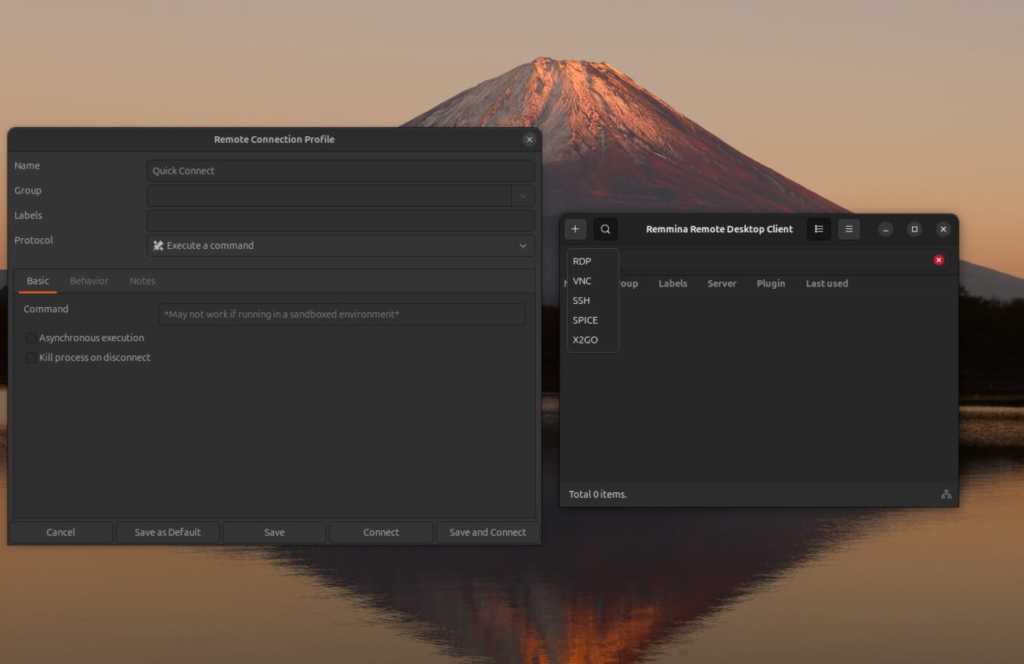
Best for: Linux users who prefer a graphical interface.
Remmina is the most convenient remote desktop client, designed primarily for remote administration of computers with various operating systems.
You get all the modern RDP features right from the start, so connecting to up-to-date Windows Servers is usually smooth. No clunky hacks needed. Jumping between different servers is quick, thanks to saved profiles. The basics you actually care about-clipboard sharing, fullscreen mode, multi-monitor setups, session scaling – work perfectly.
While Remmina is typically used for Windows Remote Desktop (RDP) connections, it is also capable of connecting using various other protocols such as SSH, VNC, X2GO, SPICE.
Remmina is Linux-only, so if you’re after a GUI client that keeps things simple, doesn’t get bogged down with useless extras, and still lets you take control when you need to, this one’s hard to beat.
Remmina can be installed either through the graphical software manager or directly from the command line using the system package manager. Follow our guide to install Remmina and connect to your Windows VPS.
For more information about Remmina, refer to the official website.
2. MobaXterm
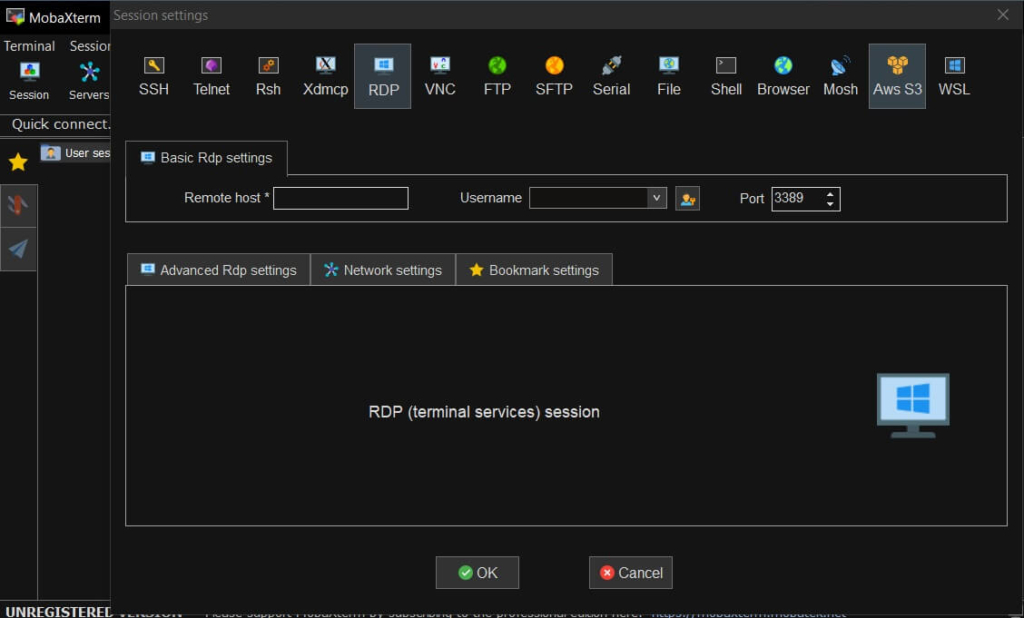
Best for: Windows users
MobaXterm is a multifunctional program for remote system management and administration, offering a wide range of tools and functions in a single, user-friendly interface. It’s a tool that will make the lives of system administrators, developers, and engineers significantly easier, providing access to remote servers, work with a variety of protocols and tools, and many other useful features.
MobaXterm gives you not only RDP, but also SSH, VNC, FTP and other protocols in one place, as a Windows application that requires no additional configuration.
The built in Unix environment is the main reason people stick with it. You open one window and you’ve got terminals, file transfers, and remote desktops all side by side. Jumping between a command line and an RDP session feels natural, especially if you’re managing Linux servers from a Windows machine.
You can refer to our guide to install and use MobaXterm.
There’s a free version that covers the basics, but the paid editions unlock advanced features and remove usage limits. For more information, you can visit the official website.
3. KRDC

Best for: KDE desktop users who want a simple, native RDP client with minimal setup.
KRDC comes built right into KDE, so it just fits naturally with KDE Plasma and doesn’t get in your way. It’s quick, light, and you can start a session without much hassle.
KRDC uses FreeRDP, just like Remmina. So you get solid support for modern RDP and NLA right out of the box.
KRDC also supports VNC connections, which makes it useful if you need to access systems that don’t expose RDP or rely on VNC instead.
KRDC can be installed through the graphical software manager on KDE based systems or from the command line using the distribution’s package manager
This one’s really for Linux users running KDE. If you want something simple and native, and you’re not looking to tweak every single setting, KRDC just works.
Check our guide to install KRDC and use it for RDP connection in Ubuntu 24.04.
You can find more information about KRDC in the official documentation.
4. FreeRDP
Best for: Linux users who prefer connecting via the command line
FreeRDP is the open source backbone behind a lot of other RDP clients out there. If you want something straightforward and super controllable, just go with ‘xfreerdp’.
It’s fast, stays out of your way, and handles all the latest RDP features. Automating it is a breeze. Reach for this one when you need quick remote access in a pinch, or have to run a client on a bare-bones system.
Getting FreeRDP set up isn’t tricky. On most Linux systems, you just use the package manager. Mac users can grab it with Homebrew. Windows folks get prebuilt installers, and if you’re the type who likes tinkering, you can always build from source.
FreeRDP works across platforms. People usually use ‘xfreerdp’ on Linux, but you’ll find it for other operating systems too. The only real catch? It’s all about the command line. If you’re after a simple point-and-click interface, this probably isn’t the tool for you.
To install FreeRDP, refer to our guide.
Official information about FreeRDP.
5. Chrome Remote Desktop

Best for: Quick, secure access through a web browser across multiple operating systems
Chrome Remote Desktop isn’t technically an RDP client – it uses Google’s own thing under the hood. Still, we had to mention it because it’s just dead simple. If you want remote access right now and don’t want to mess with ports, this is probably the fastest way in.
Chrome Remote Desktop lets you securely control a Windows VPS from any system through your Google account using a browser, without exposing RDP ports or relying on the RDP protocol.
Here’s how it works: You set up a lightweight service on the remote machine. It quietly runs in the background and streams the screen through Google’s servers. When you want to connect, just sign in with your Google account and enter your local PIN.
You can run it pretty much anywhere that supports Chrome or a browser – Windows, macOS, Linux, whatever. Getting set up? It takes about a minute. It’s great as a backup or for those moments when opening RDP ports just isn’t happening.
What you need to run it:
• A Windows VPS you can already log into once
• Google Chrome installed on the VPS
• A Google account you trust long term
• Chrome or Chromium on your computer
• A strong PIN for remote sessions
Check our detailed guide on how to connect to your server using Chrome Remote Desktop.
That said, you don’t get full control. It’s not made for long admin sessions or deep tweaking. This is more of a quick fix than a main solution.
You can check Chrome Remote Desktop here.
6. TeamViewer
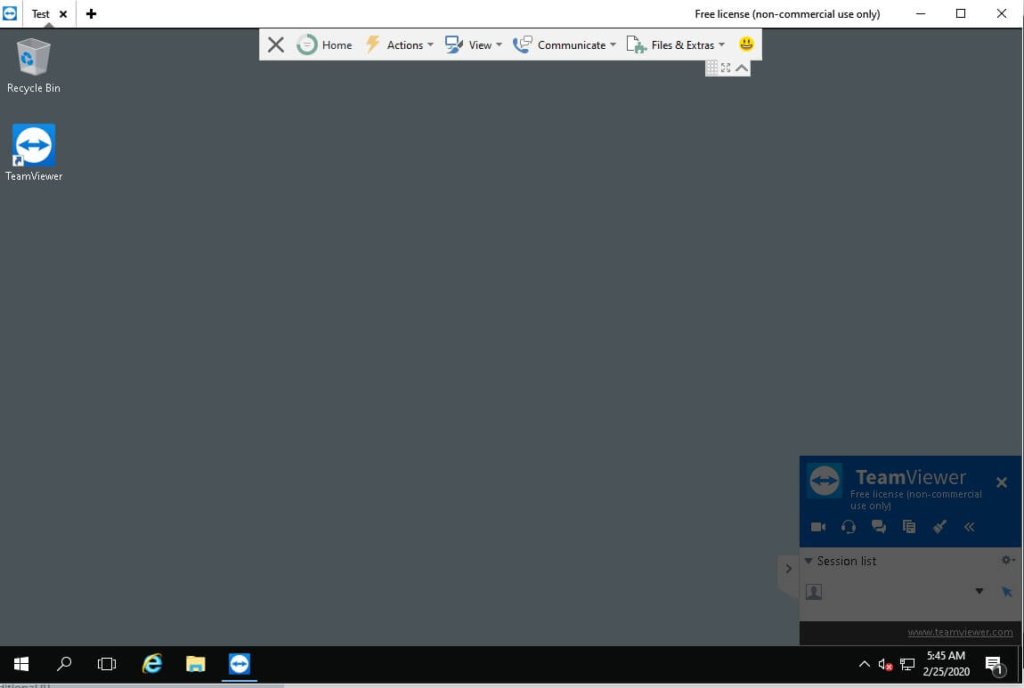
Best for: Quick, secure access across different operating systems.
TeamViewer is a software application that enables remote access, remote support, and file transfer between devices.
TeamViewer works by establishing a secure connection between two devices. Once TeamViewer software is installed on both devices, the user on the controlling device can enter the unique ID and password provided by the remote device to initiate a session. The connection allows full control of the remote system, as if the user were physically present, enabling troubleshooting, file transfer, and real-time collaboration. The software also supports features such as unattended access, where the remote device can be accessed without the need for someone on the other end to manually authorize the connection.
Security is handled by default with strong encryption and optional two-factor authentication, so you don’t need to micromanage settings to stay safe. File transfers, clipboard sharing, remote reboots, and unattended access are all built in and work as expected.
TeamViewer can feel heavier than a pure RDP client and the free version is limited, but if speed, simplicity, and cross platform access matter more than fine tuned control, it gets the job done.
To install and use TeamViewer, you can check our guide.
Conclusion
There’s no single best RDP client for everyone. If you’re on Linux, Remmina or KRDC are easy, reliable choices. If you work from Windows and manage multiple systems, MobaXterm gives you the most flexibility. If you prefer the command line or automation, FreeRDP is the right tool. For quick access from anywhere, Chrome Remote Desktop or TeamViewer can save you time.
Microsoft Remote Desktop (Windows App) still works, but it’s not the only option. The right remote client really does make remote work smoother and way less annoying.